
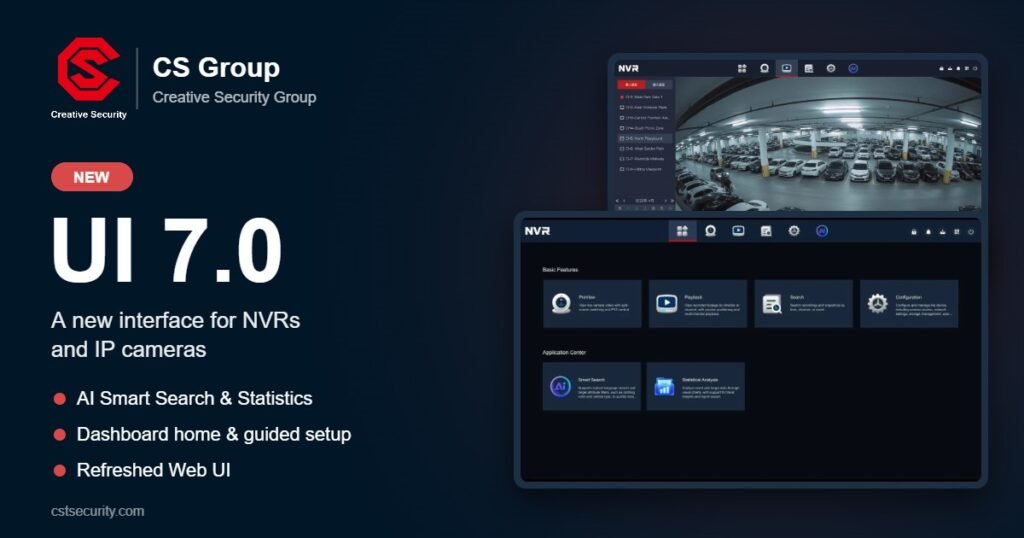
Introducing UI 7.0: A Smarter, Cleaner Interface for Our NVRs and IP Cameras
Creative Security Group is rolling out UI 7.0 for our NVRs and IP cameras — a full rebuild of the interface, visual design and AI features. It is easier to learn, clearer to use, and puts AI search one click away.
What’s new at a glance
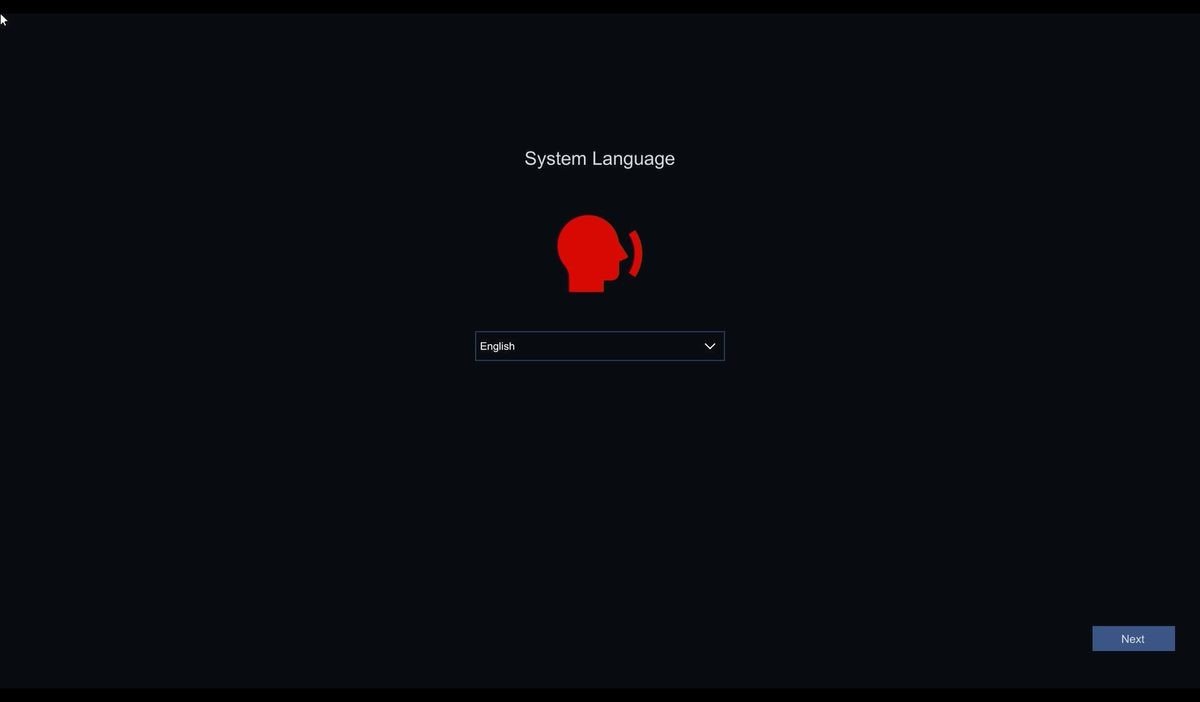
- Faster setup — an 8-step startup wizard guides first-time installs, with no manual network or disk setup needed.
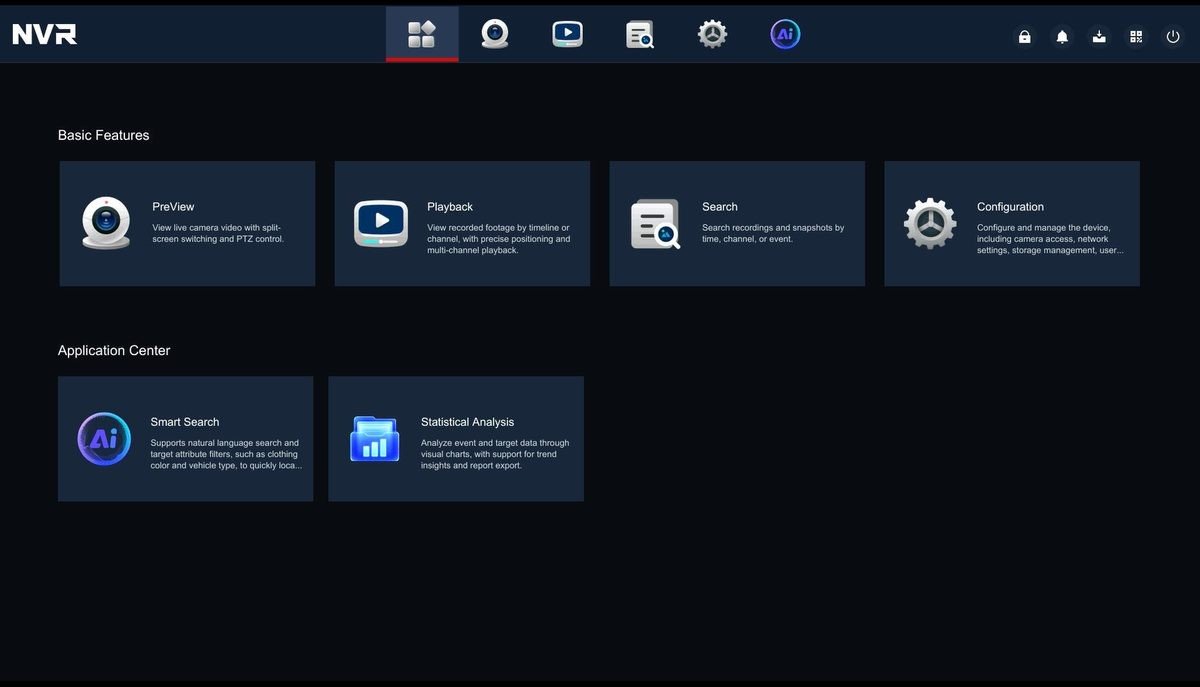
- Dashboard home — Live View, Playback, Search and the new AI Search are one click away on a card-based home screen.
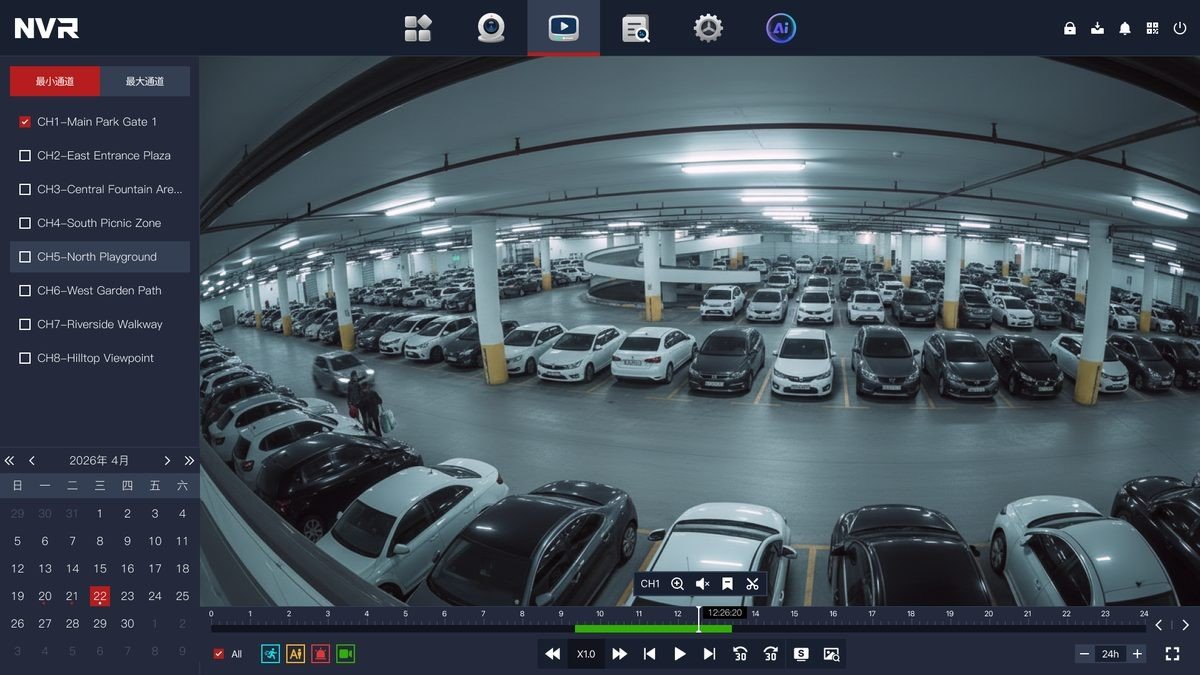
- Clearer live view and playback — a roomier 3×3 grid, a persistent channel panel, larger flat icons and AI/alarm events marked right on the timeline.
- Simpler configuration — settings live in one flat left-hand menu. PoE now sits under Camera, with no Expert/Simple mode switch.
- Stronger security — new and factory-reset devices start with an activation step and a strong-password policy.
AI Smart Search and Statistics
AI now has its own entry in the top navigation. Smart Search finds people, motor vehicles and non-motor vehicles by attributes such as clothing color or vehicle type. Statistical Analysis adds cross-line counting, people and vehicle flow statistics and zone heatmaps, with trend views and report export.
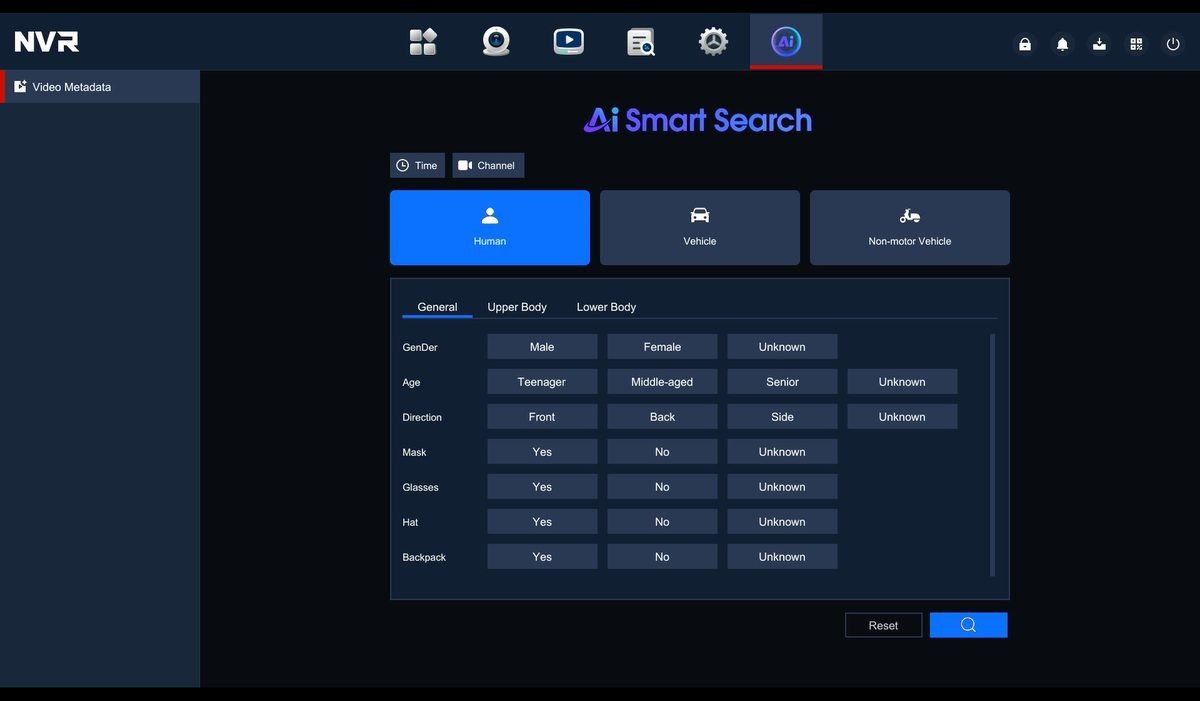
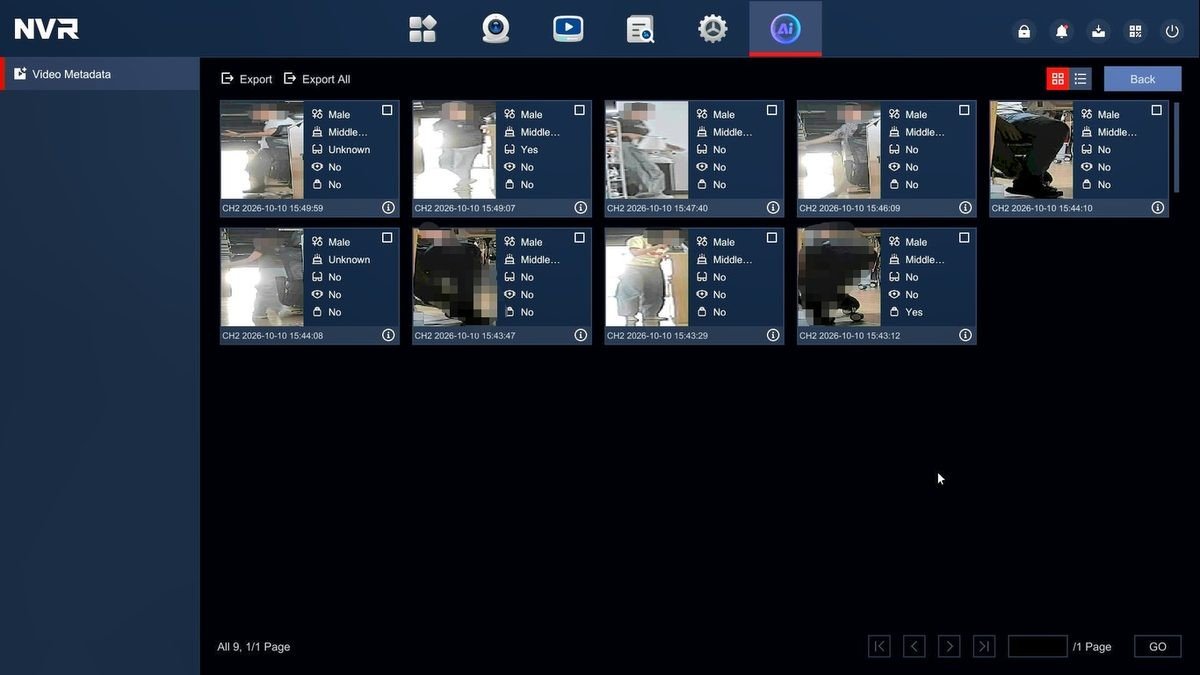
Image Search goes one step further: pick a detected person or vehicle, click Image Search, and the NVR finds matching targets across your footage and jumps to the recording.
Fisheye support
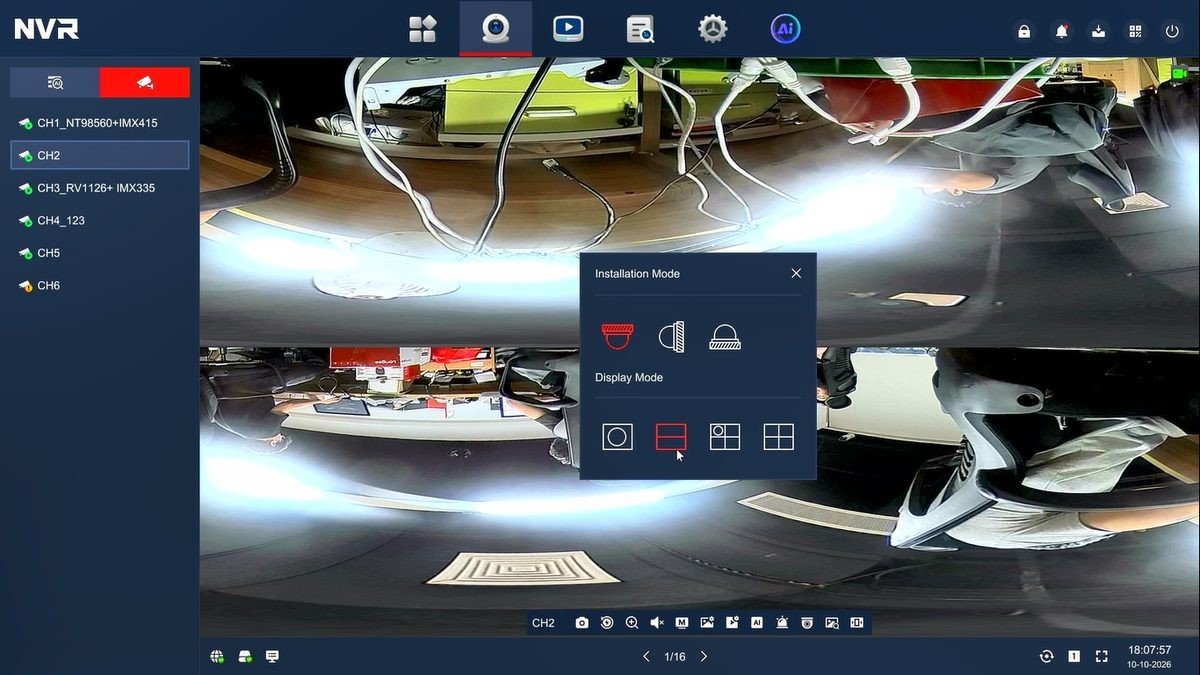
Click Fisheye in the live-view toolbar, choose the mounting (ceiling, wall or desktop), then pick a view: Fisheye, Panorama, Fisheye + 3PTZ or 4PTZ.
A matching Web UI for NVRs and IP cameras
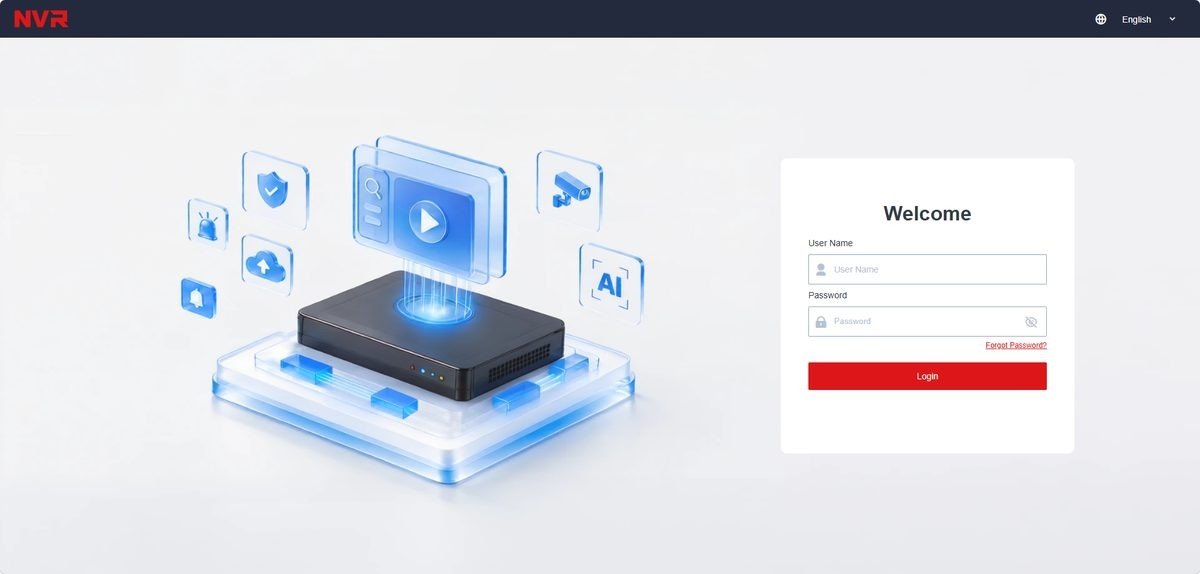
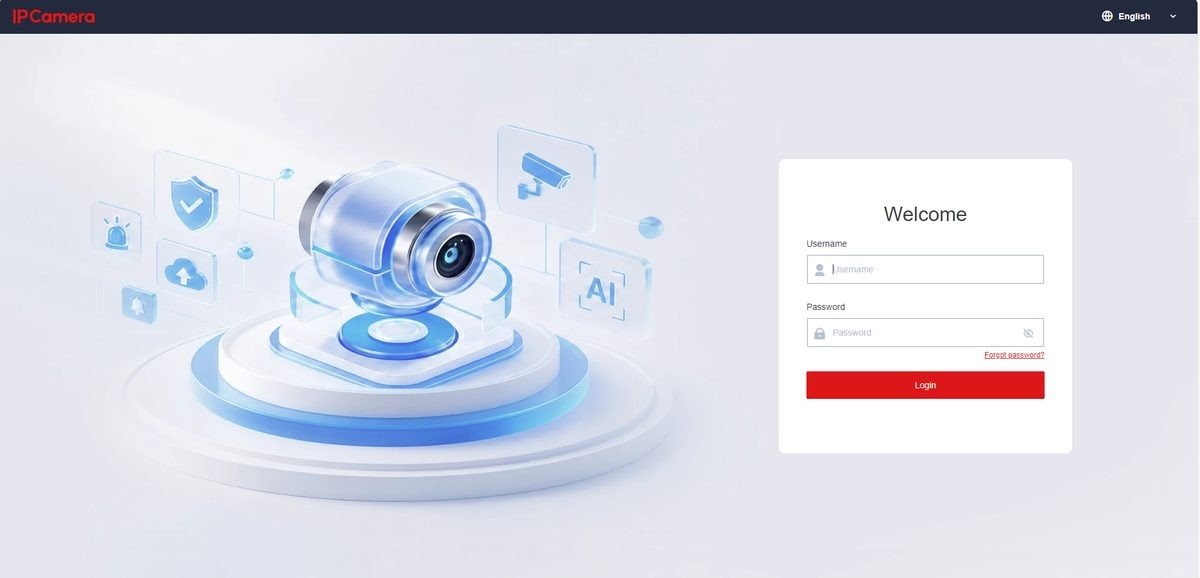
The NVR and IP camera web interfaces have been refreshed to match: the same modules as the local UI (Live, Playback, Search, Setup, Statistics) in a clean, light design. IP cameras add a first-boot activation wizard, drag-anywhere OSD, role-based user permissions, and a tidier layout for ROI, privacy masks, white balance and event schedules.
Upgrade notes for installers
- Upgrading an NVR to UI 7.0 does not affect cameras that are already connected. New cameras go through a password and activation check; one-tap add still adds older cameras automatically.
- If a device still uses a weak password, you will be asked to change it after the upgrade.
- New or factory-reset devices open an activation page first. You can activate them from the Web UI, the search tool or VMS. Our NVRs also activate cameras automatically when they are plugged into a PoE port.
- On AI models (N33 and N36 series), format the hard drive after upgrading before using the face and license-plate libraries.
- Cameras on UI 7.0 ship un-activated. Third-party NVRs that use PoE plug-and-play may need the camera activated first.
UI 7.0 firmware for our NVR platforms is available on the Support page. Questions or need help upgrading? Contact our team.